
Overview
This guide will walkthrough discussion board creation, discussion settings, and how to manage discussions.
Create a Discussion Board
Note: Discussions can be created in two locations: the Course Content or the Discussions tab. A set of instructions for each are listed below.
Create from the Content Page
Create from the Discussion Tab
Discussion Settings
Each discussion's settings can be accessed by clicking the cog icon on the right side of the Discussion screen.
By default, all discussions appear to students on the Course Content page. You can deselect the option if you want students to only view the discussion from the Discussions page.
- You can select Post first to hide discussion activity from students until they respond to the discussion. When you want to use both post first and groups, select Post first before you assign groups.
- Select Prevent editing if you don't want students to be able to edit their discussions after posting them.
- Allow anonymous responses and replies. You can make discussion posts anonymous if you'd like students to feel free to share their thoughts without judgment. You can turn anonymous posts on and off. Any posts made while anonymous keep their anonymity if anonymous posts are later turned off. You can't grade anonymous discussions. Authorized users can reveal the author of an anonymous post in cases of misuse.
- Grade discussion. To motivate students to post insightful contributions, you can make the discussion count for a grade.
- Align goals with the discussion. You and your institution can use goals to measure student achievement across programs and curriculums. When you create a discussion, you can align one or multiple goals. Select Goals & Standards to search for available goals. After you make the discussion visible, students can view the goals so they know your expectations. Visit Goals to learn about how to align goals with course content.
- Add groups. You can assign students to discussion groups so that fewer people are involved. You can also assign a specific topic to each group.
- Set release conditions. The visibility settings of a learning module or folder also apply to discussions within them. However, visibility settings on the Discussions page are separate. For example, a discussion set to Visible to students within a folder set to hidden won’t be on the Course Content page. However, that same discussion will be available to students on the Discussions page.
Add a second participation requirement and due date in Discussions
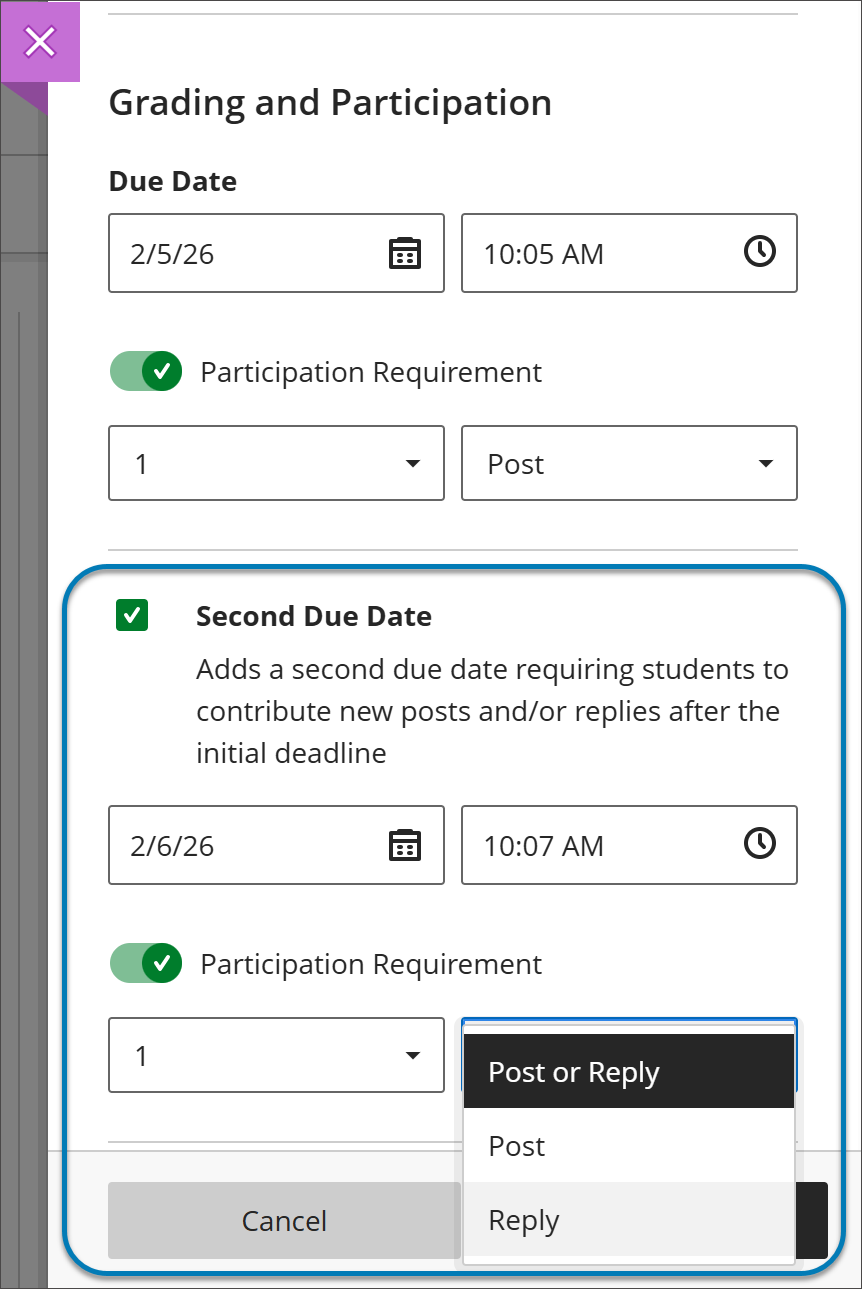
Instructors can now add a second due date with participation requirements for Discussions. The option Grade discussion must be selected to add a due dates and participation requirements. Enter a time and date under Due Date and specify participation requirements. Selecting Second Due Date adds another due date with its own requirements.
Instructors can disallow student posts or replies after the final due date by selecting Stop discussion activity after last due date.
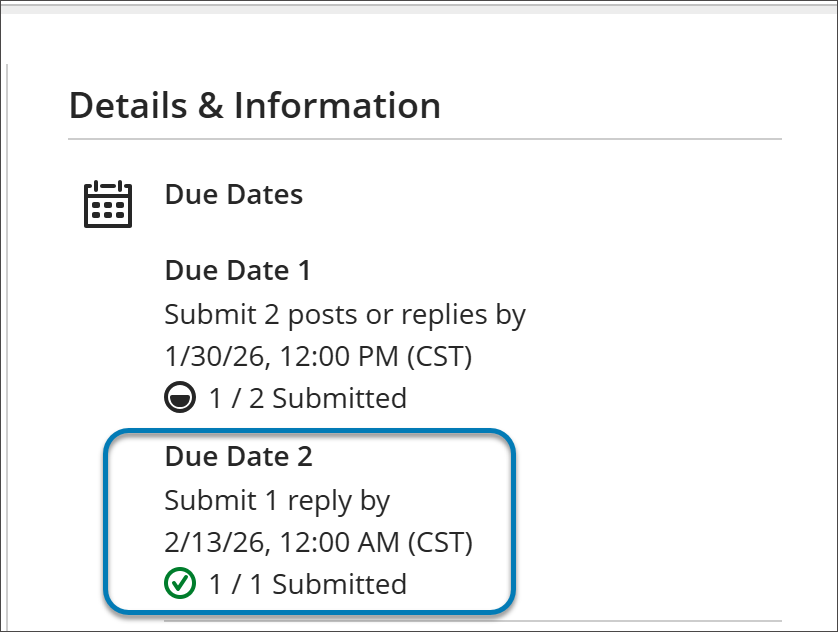
When students open a discussion, they find two clear participation requirements with separate due dates. As they post and reply, progress indicators update in real time.
Students can complete requirements in any order, but contributions after a due date won’t count toward that requirement. Once all requirements are met, the discussion is marked complete and Progress Tracking updates.
Notice on Group Assignments
When discussion boards are setup with groups, it allows students to participate in the discussion in a smaller settings. Each group can only interact with other members of the group. Groups are not able to view other groups discussion boards. You can't move individual students out of groups after they start their discussions. However, you can move unassigned students into groups after discussions have started.
Grading Discussions
Information on grading discussions can be found here.
Delete discussion topics, responses, and replies
- Instructors can edit or delete anyone's discussions, discussion titles, responses, and replies.
- Students can delete only their own discussions, responses, and replies. Students can't edit their discussion titles after they create discussions.
Open the menu for a response or reply to access the Edit and Delete functions. If you delete an initial response, all replies remain. The system displays a message about your deletion so others know what happened.
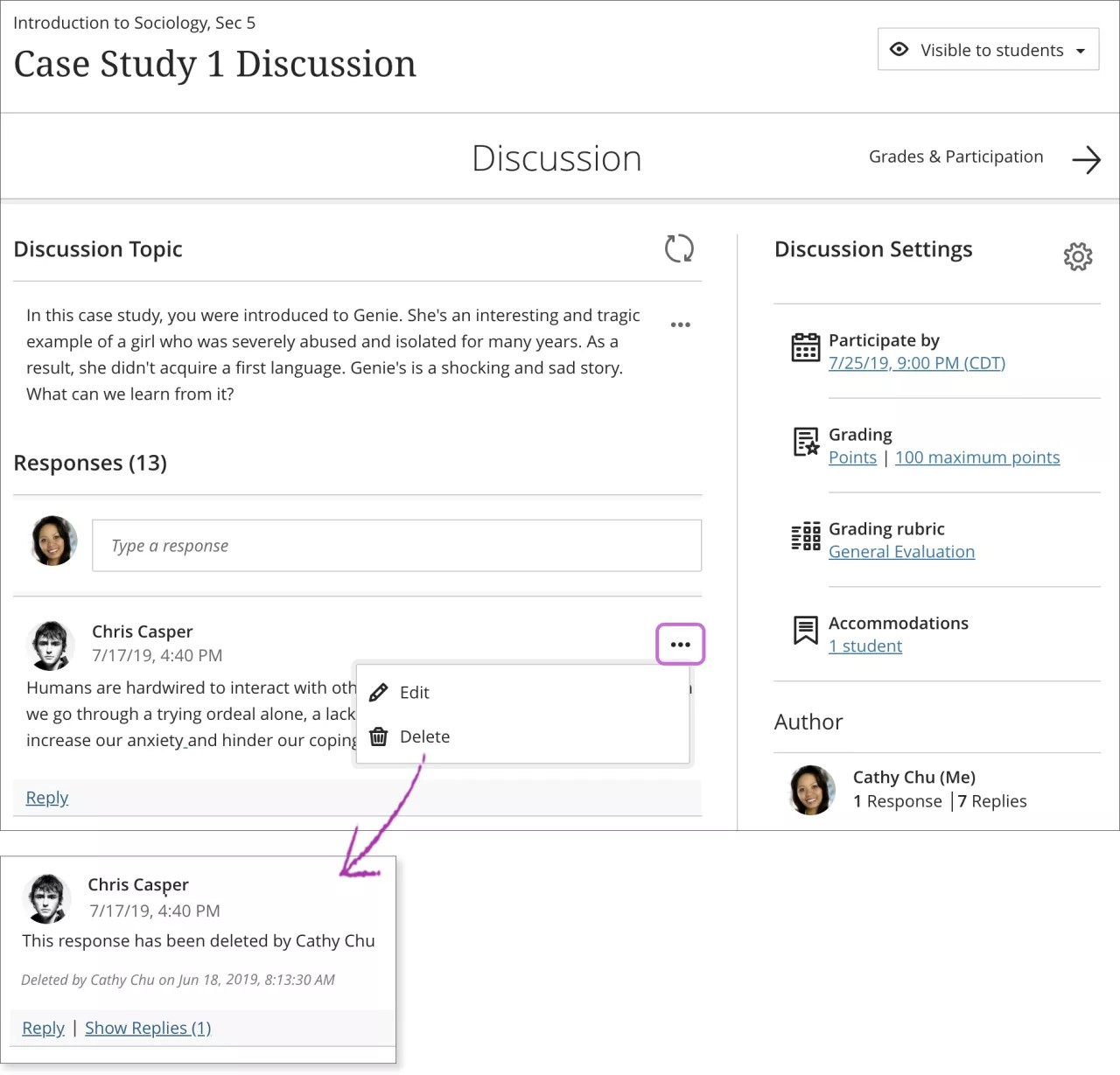
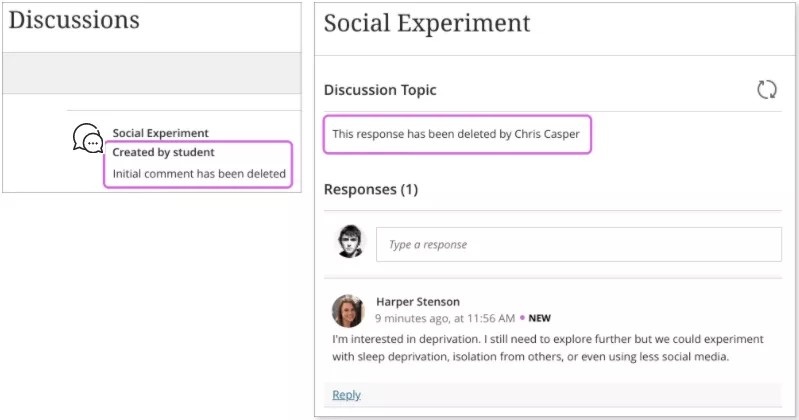
If you delete the discussion topic and responses and replies exist, everyone is informed about the deletion. The deletion message also appears if students delete discussion topics they created.
Comments
Please sign in to leave a comment.